Context Menu Missing In iCloud Or Cloud Drive Folders
If the MouseBoost context menu does not appear when you right-click inside iCloud Desktop, Documents, iCloud Drive, OneDrive, Dropbox, or another synced cloud folder, it is usually not a lost MouseBoost setting. It is commonly caused by macOS limits around Finder Extensions and cloud-drive folders.
Why Does The Menu Disappear?
On macOS 14 and later, Apple limits Finder Extension behavior in iCloud Desktop and Documents folders. The standard Finder Extension menu may not appear in these locations, and MouseBoost cannot fully bypass that system limitation.
Common symptoms:
- MouseBoost appears in normal local folders.
- MouseBoost does not appear in iCloud Desktop, Documents, or iCloud Drive folders.
- OneDrive, Dropbox, and other cloud-drive folders may show similar behavior.
- Restarting MouseBoost does not fix the issue when it only happens in cloud folders.
First Confirm The Extension Is Enabled
If MouseBoost does not appear anywhere, check the Finder Extension first:
- Open System Settings.
- Go to Extensions or Login Items & Extensions.
- Confirm that the MouseBoost Finder extension is enabled.
- Restart Finder and try again.
If the context menu is missing only in iCloud or cloud-drive folders, continue with the options below.
Recommended Fix: Enable Quick Access
MouseBoost Quick Access does not rely on the standard Finder Extension menu. It can read the current selection through Accessibility and show the MouseBoost menu in iCloud, OneDrive, Dropbox, and other cloud-drive folders.
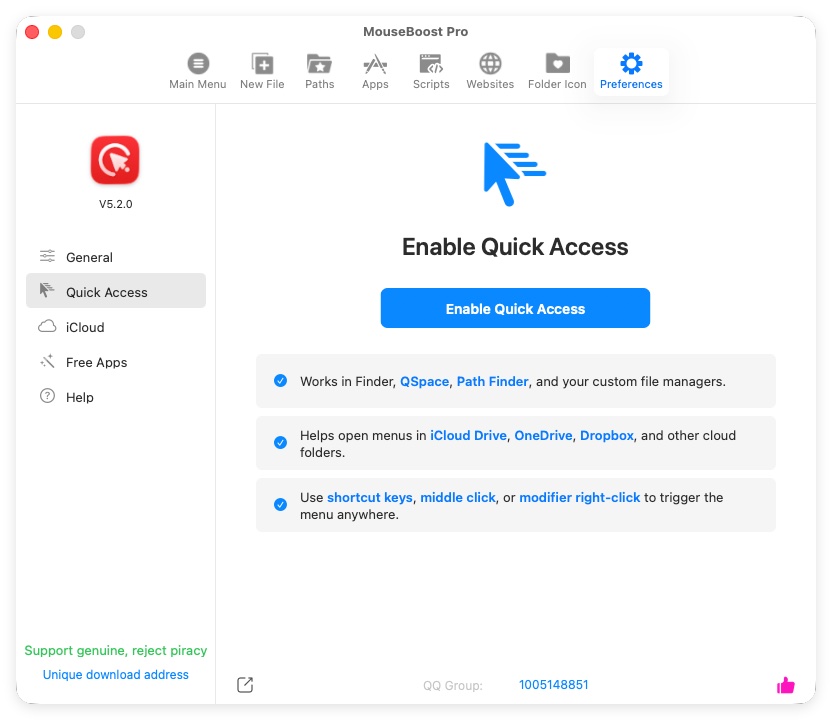
Recommended setup:
- Enable Quick Access.
- Grant MouseBoost Accessibility permission.
- Test in both a normal local folder and an iCloud folder.
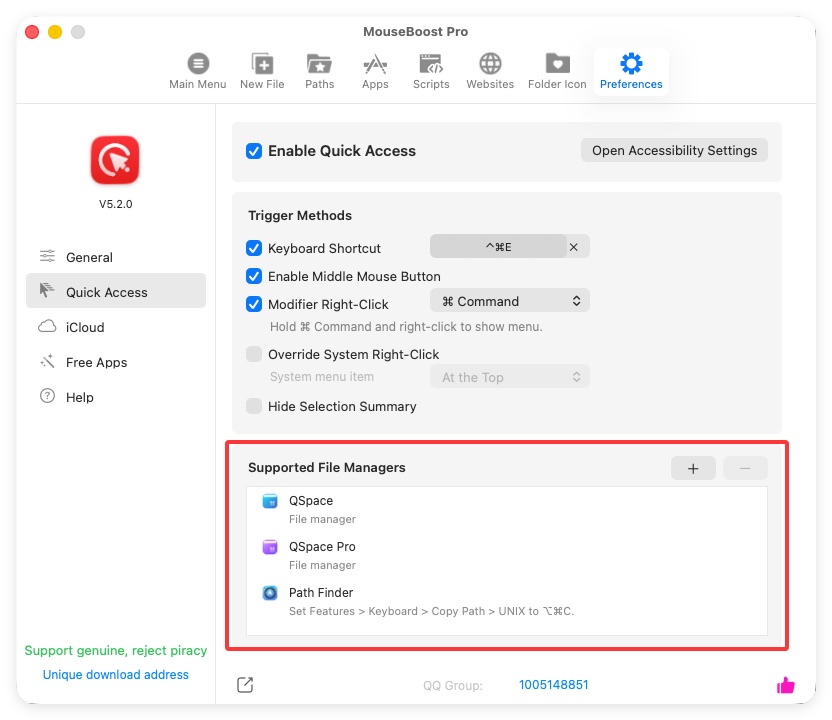
- If you use a third-party file manager, add that app in Quick Access settings.
After enabling Quick Access, you can show the menu with:
- Middle mouse button.
- Hold
Commandand right-click. - Set a global shortcut to activate the menu anywhere.
You can change these triggers in MouseBoost preferences.
Optional Fix: Turn Off Desktop And Documents Sync
If you rely heavily on the standard Finder Extension context menu, consider turning off iCloud sync for Desktop & Documents and working from normal local folders instead.
After turning off sync, files remain on your Mac. You can still find them in iCloud Drive in Finder.
There are two ways to turn off Desktop & Documents sync. Use either one.
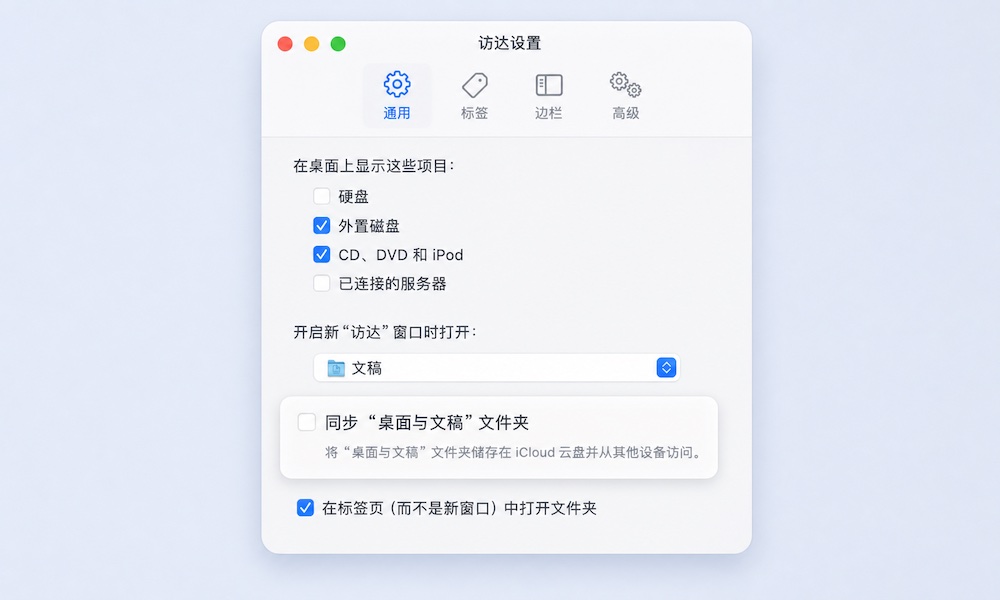
Method 1: Turn It Off In Finder Settings
Open Finder, go to “Finder Settings -> General”, and uncheck “Sync Desktop & Documents Folders”.
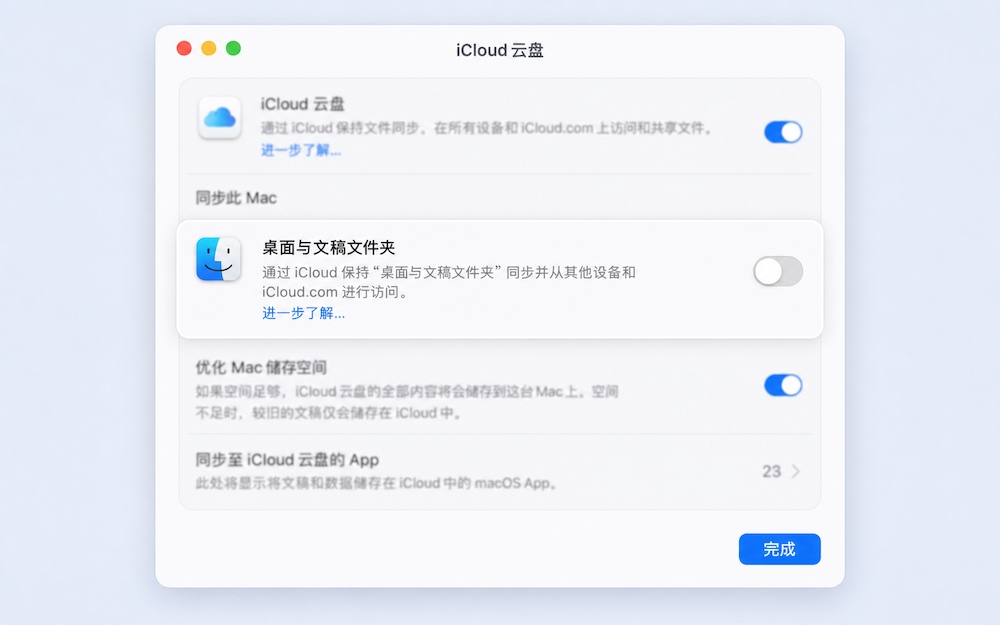
Method 2: Turn It Off In iCloud Settings
Go to “System Settings -> Apple Account -> iCloud -> iCloud Drive” and turn off “Desktop & Documents Folders”.
What If It Still Does Not Appear?
Check in this order:
- Test whether MouseBoost appears in a normal local folder.
- Confirm that the Finder Extension is enabled.
- Confirm that Quick Access is enabled.
- Confirm that Accessibility permission is granted.
- Restart Finder.
- Quit and reopen MouseBoost.
- For third-party cloud folders, confirm that the cloud app is not locking or occupying the files.
If MouseBoost is also missing in normal local folders, go back to Getting Started and Permissions and Notes to check the basic setup.