Permissions and Notes
MouseBoost is a Finder context menu enhancement tool. Many features need to work with Finder, the system clipboard, system settings, the file system, screen access, and keyboard or mouse events. Correct permissions directly affect whether features appear, execute, and remain stable.
Finder Extension Permission
The Finder context menu depends on Finder Extension. If the Finder extension is not enabled, MouseBoost will not appear in the standard Finder context menu.
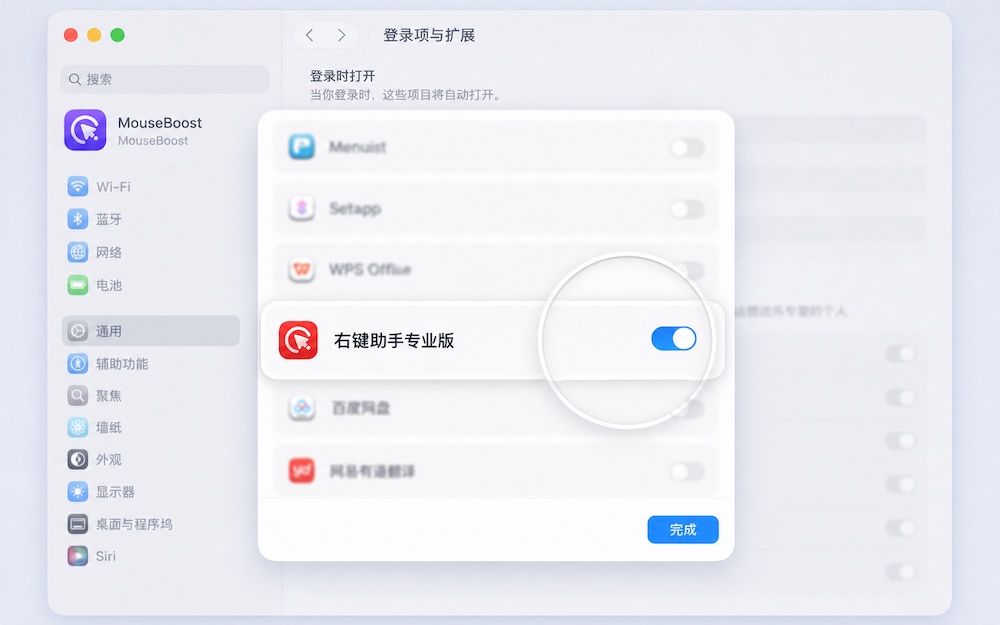
Features that need Finder Extension:
- Finder context menu.
- Dynamic menus based on selected files.
- Type filtering for folders, files, images, archives, and other formats.
- Right-click toolbar menu.
Troubleshooting:
- Confirm that the MouseBoost Finder extension is enabled in System Settings.
- Restart Finder.
- Quit and reopen MouseBoost.
- Test in a normal local folder first, not on external disks or protected folders.
Accessibility Permission
Accessibility permission is used to monitor and simulate keyboard and mouse events. MouseBoost does more than read Finder Extension menus; it also provides Quick Access, context-menu override, middle-click menu, cut and paste, and other enhanced workflows.
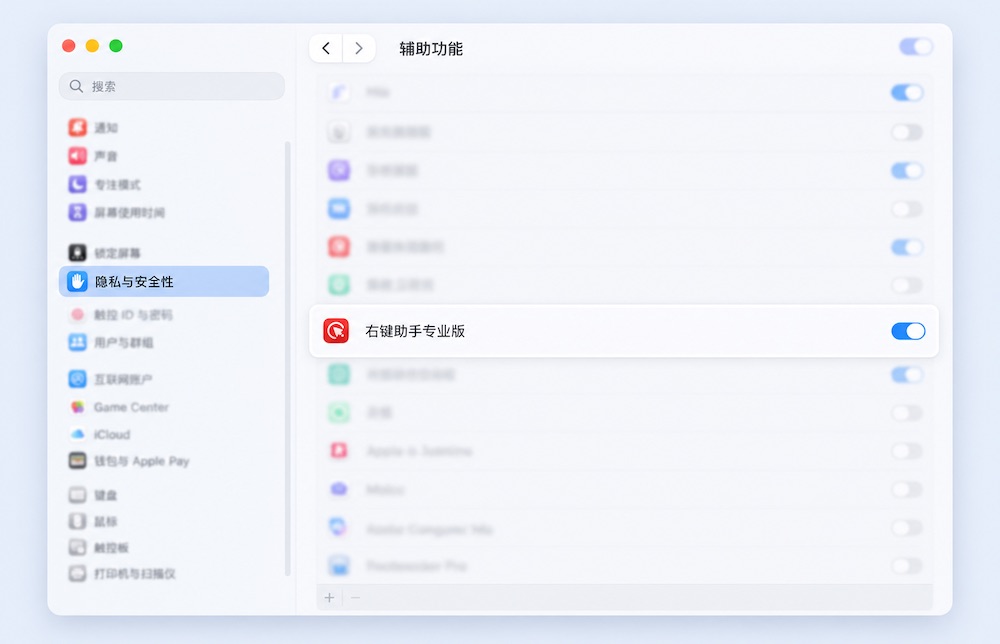
Features that need Accessibility:
- Show the MouseBoost menu with middle-click.
- Override the system right-click menu.
- Show the menu by holding a modifier key and right-clicking.
- Read the current Finder selection path.
- Simulate Finder copy, paste, cut, Get Info, and Move to Trash.
Command + Xfile cut.- “Paste to editor” in Clipboard History.
- Keyboard Cleaner input blocking.
- Features that activate Finder and simulate shortcuts, such as searching the current folder.
Permission path:
System Settings -> Privacy & Security -> Accessibility -> enable MouseBoost.
If it still does not work after authorization:
- Quit and reopen MouseBoost.
- Turn MouseBoost off and on again in Accessibility settings.
- Restart Finder.
- Log out and back into macOS.
Full Disk Access
Full Disk Access is used for protected system locations and some user privacy folders. Without it, some file operations may fail or show an authorization panel.
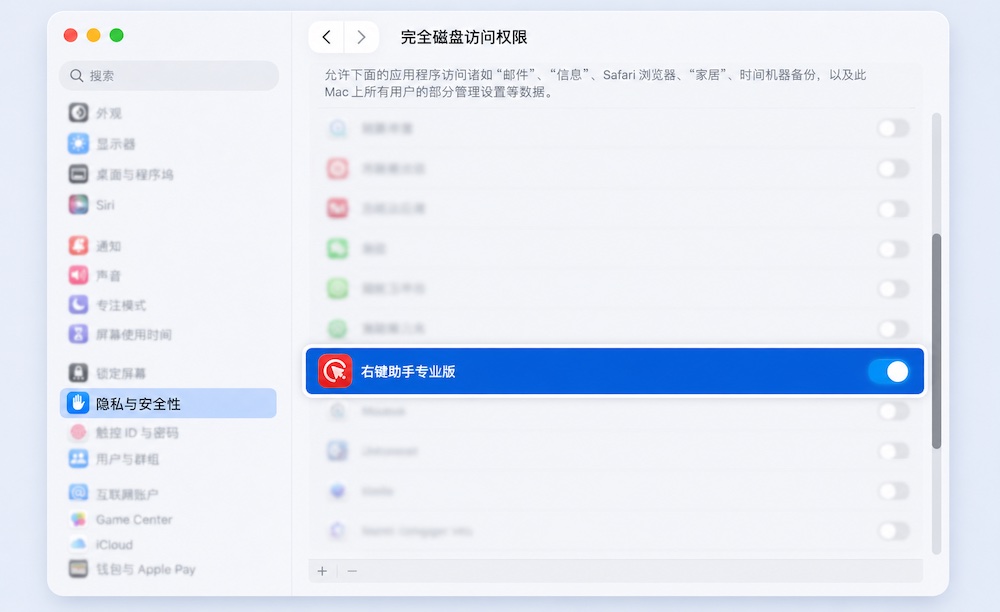
Recommended scenarios:
- Managing files on external disks.
- Copying and moving across folders.
- Delete, force delete, and Move to Trash.
- App uninstall and leftover file scanning.
- Accessing locations outside the user folder.
- Accessing Desktop, Documents, Downloads, Photos Library, and other system-protected locations.
- Processing system folders or folders with stricter permissions on older macOS versions.
Permission path:
System Settings -> Privacy & Security -> Full Disk Access -> enable MouseBoost.
Note: Full Disk Access does not mean every path is always writable. Files can be locked, disks can be read-only, network volumes can lack permission, and backup snapshots may not be modifiable.
Folder Authorization And Security-Scoped Access
When MouseBoost finds that a target path is not writable or cannot be accessed, it may show a folder authorization panel. After authorization, MouseBoost saves a security-scoped URL for future access to that folder.
Common triggers:
- Copying to a protected folder.
- Moving files from an external disk.
- Operating outside user folders.
- Opening a favorite folder that lacks permission.
- Running scripts that read or write protected paths.
Recommendations:
- Authorize the parent folder you actually need.
- If you only work inside one project folder, you do not need to authorize the whole disk.
- If you frequently use an external disk, authorize the external disk root.
External Disk Notes
External disks involve file system format, mount state, and permissions. MouseBoost provides an “Enable external disks” setting to make menu and permission behavior more suitable for external disks.
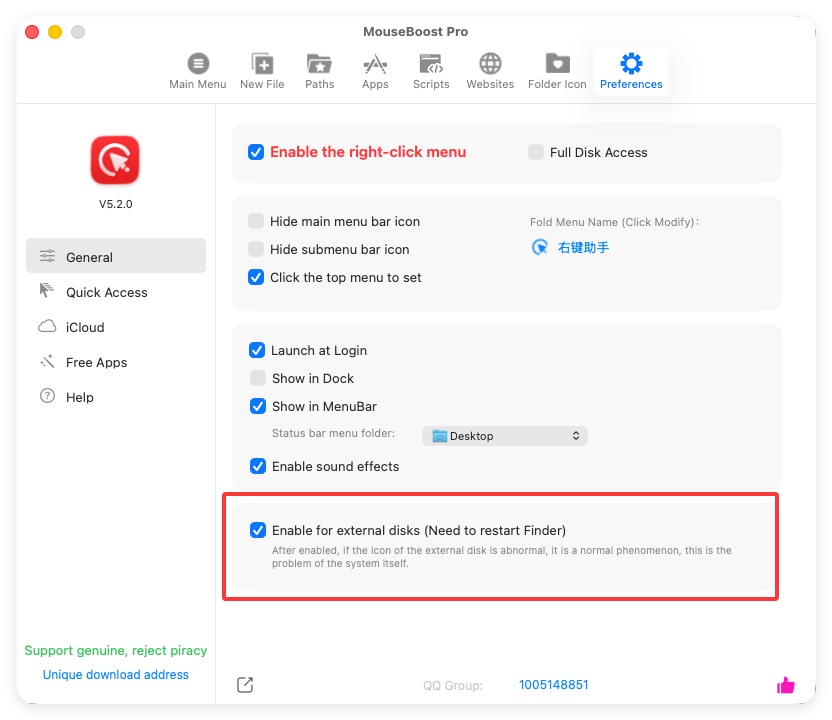
Recommendations:
- Enable “External disks” in preferences.
- Grant MouseBoost Full Disk Access.
- On first external-disk operation, choose that disk or the target folder when the authorization panel appears.
- If the disk is NTFS and macOS has no write support, copy and move may fail.
- If the disk is read-only, damaged, or being used by Time Machine, delete or move may fail.
- Eject only appears when a volume is selected.
Screen Recording Permission
Screenshot to clipboard, color picker, and some screen-related features may require Screen Recording permission.
Permission path:
System Settings -> Privacy & Security -> Screen Recording -> enable MouseBoost.
If screenshots or color picking behave unexpectedly, check this permission and reopen MouseBoost.
Microphone Permission
Microphone mute and QuickTime audio recording may involve microphone access.
If macOS asks for microphone permission, allow it. If no prompt appears but the feature does not work, check Microphone permissions for MouseBoost or QuickTime Player in System Settings.
Automation And AppleScript Permission
Some MouseBoost scripts control Finder, System Events, QuickTime Player, or system settings. These actions may trigger macOS Automation authorization.
Related features:
- Restart Finder.
- Lock screen, sleep, toggle dark mode.
- Search current folder.
- QuickTime recording.
- Move to Trash.
- Create alias.
- Toggle system hidden files.
If macOS asks whether MouseBoost can control another app, allow it. Otherwise, the related script may fail.
Third-Party Dependencies
Some features depend on third-party apps:
- Office to PDF requires LibreOffice.
- OmniZip integration requires OmniZip or OmniZip Pro.
- iTerm2, Ghostty, cmux, Kaku, and other terminal entries require the matching app or service.
- Send to WeChat requires WeChat and the system share service.
- Opening files with a third-party editor requires that app to be installed.
MouseBoost usually shows install guidance or an open-failed prompt when a dependency is missing.
High-Risk Operation Advice
Use these actions on a small test set first:
- Direct delete.
- Batch rename.
- Batch move.
- Unembed folder.
- Image rotate, because it saves back to the original file.
- Empty Trash.
- App uninstall and leftover file deletion.
- Git Add / Commit / Push scripts.
Build two habits:
- Preview or test batch operations first.
- Back up important files first.