Shortcuts
MouseBoost supports separate shortcuts for context menu features. You can turn frequent menu items into direct global actions, such as opening Clipboard History, triggering a menu item, copying or moving the current Finder selection, batch renaming, or running a script.
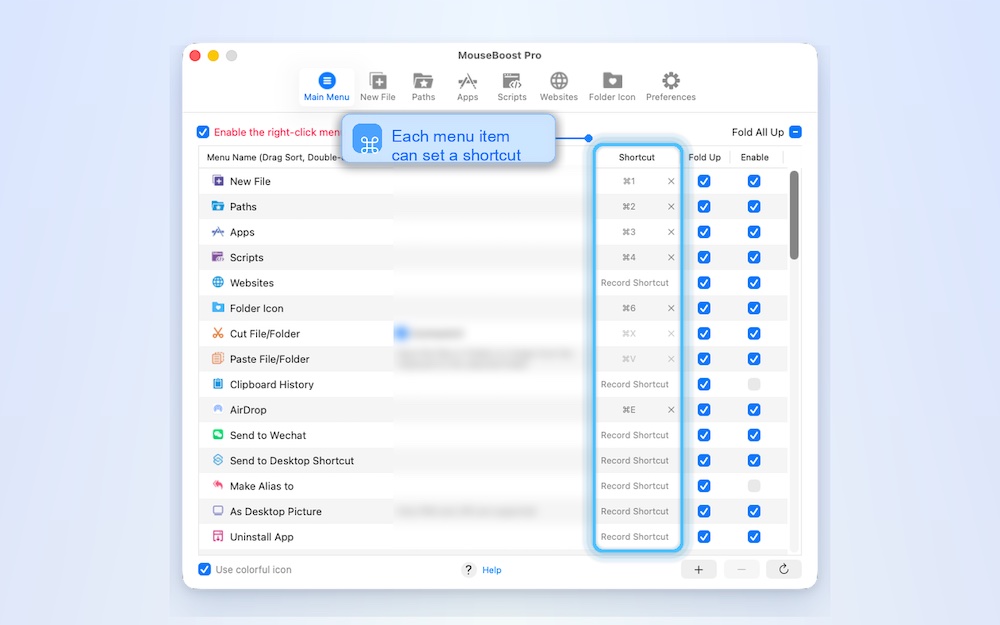
Where To Set Shortcuts
Open the MouseBoost main app and go to the General menu configuration page. The menu list includes a Shortcut column where each menu item can have its own shortcut.
After setup, MouseBoost binds that menu item to the shortcut. When the shortcut is triggered, it follows the same rules as the original menu item: if it needs selected files, it reads the current Finder selection; if it does not need files, it runs directly.
Default Shortcuts
MouseBoost includes a few default shortcuts:
- Quick Access: default
Control + Command + E. - Cut file: optional
Command + X. - Paste file: uses Finder-context
Command + V. - Clipboard History: no default shortcut now; configure it in the menu item Shortcut column if needed.
If you do not like a default shortcut, re-enter it in settings.
Each Menu Item Can Be Configured Independently
Good candidates include:
- Copy Path.
- Copy Filename.
- New File.
- Batch Rename.
- Clipboard History.
- Open Terminal Here.
- Common Scripts.
- Image resize or compression.
- File hash.
- Keep Awake.
This lets you make MouseBoost highly personal: frequent actions use shortcuts, and less frequent actions stay in the context menu.
Permission Notes
If a shortcut triggers a menu item that needs the current Finder selection, it usually requires Accessibility permission. MouseBoost needs to simulate copying the selected path from Finder and pass it to the action.
If the shortcut triggers a feature that does not depend on files, such as Clipboard History, Keep Awake, or Color Picker, it usually does not need a selected file.
Shortcut Conflicts
If a shortcut is already used by the system or another app, it may fail to trigger or trigger the other app instead.
Recommendations:
- Avoid overriding common system shortcuts.
- Use memorable combinations that are less likely to conflict, such as
Control + Option + letter. - Keep Finder-style defaults for cut and paste.
- If a shortcut does not work, test another combination first.
Quick Access Versus Menu Item Shortcuts
Quick Access means “show the MouseBoost menu”, which is useful when you still want to choose an action from the menu.
Menu item shortcut means “run a specific feature directly”, which is better for frequent actions such as Copy Path, Clipboard History, and scripts.